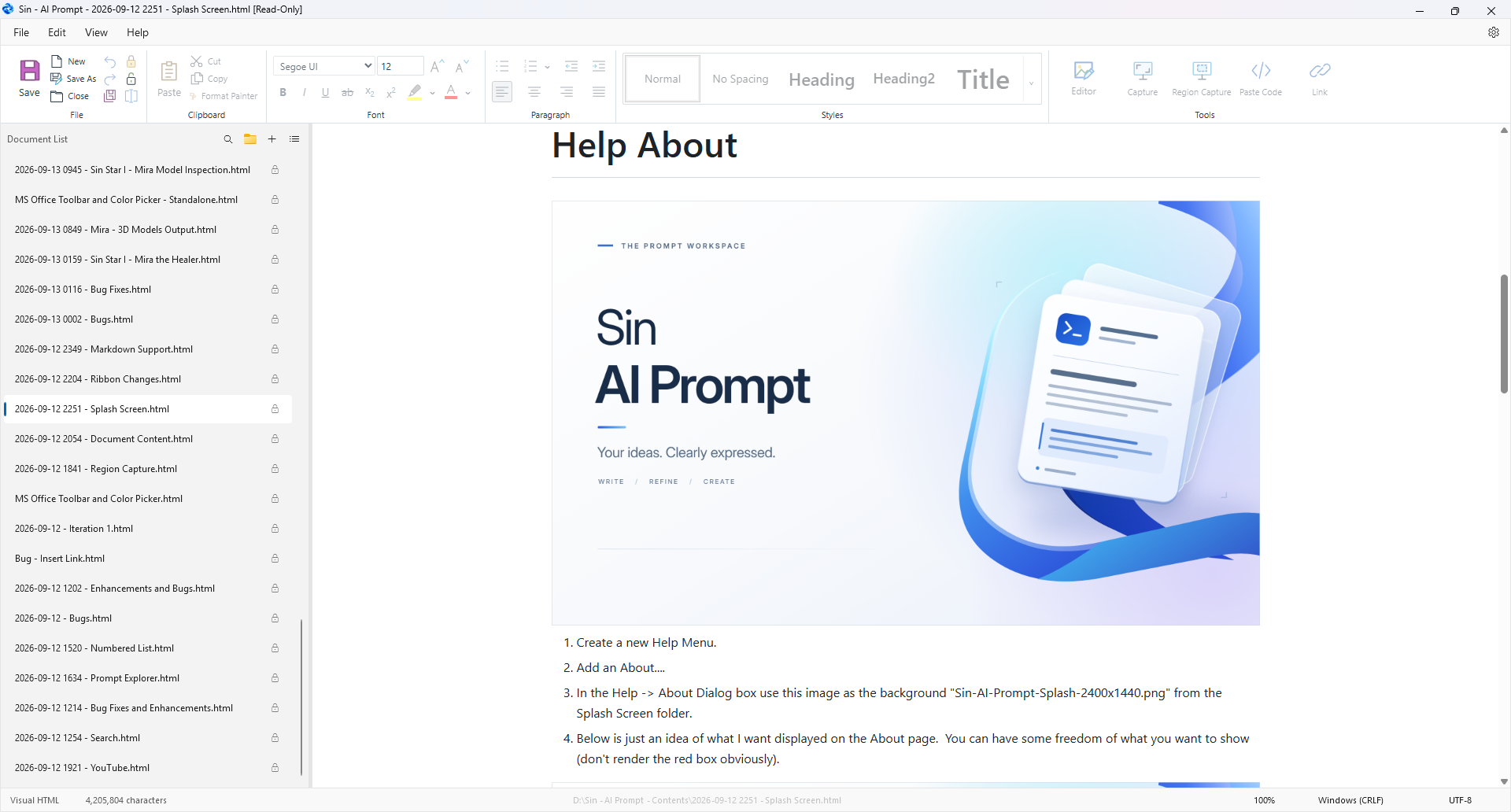
A native Windows HTML editor, cloned from Sin - Notepad, with PMT-style rich text editing and layered image annotation. No database, AI service, npm packages, or third-party application libraries.
Edit HTML
- Create, open, edit, and save
.html/.htmfiles. New documents are named Prompt 1, Prompt 2, and so on. - Use the toolbar to choose fonts, pixel sizes, foreground and selection background colors, bold, italic, underline, and strikethrough. Headings, lists, alignment, and links are included.
- View Source opens the native HTML source editor. Return using Visual editor, or View → Visual editor / View source.
Ctrl+Shift+Uswitches views. - Paste Code supports C#, HTML, JavaScript, CSS, SQL/T-SQL, TypeScript, JSON, and Java. Choose full code (default), a first-lines preview, or a collapsed block with a required caption. Click a disclosure to expand it; double-click to edit. Colors follow Visual Studio 2026 Light, with IntelliJ Default for Java. Coloring is lexical, without project/compiler symbol resolution.
- The ribbon uses Modern paragraph styles, a large Save button with New / Save As / Close, and a Tools group for Editor / Capture / Region Capture. The text marker starts yellow and remembers the chosen color; highlighting stays visible while the text remains selected.
- Font Color and Highlight are split buttons: the left applies the remembered color; the arrow opens its palette. Click outside to dismiss. All palettes share the ten most recently chosen colors, including annotation palettes, and retain them after restart. Tools buttons fill available ribbon space individually before wrapping or entering overflow.
- Link provides a full-width address, optional name and URL only, no thumbnail. YouTube links default to a card with thumbnail, title/channel, inline playback, fullscreen and Open In Browser. Save the YouTube thumbnail locally optionally embeds a PNG; otherwise the thumbnail loads from YouTube. Other available page thumbnails are embedded, with text-link fallback when unavailable.
- Modified documents show
*after their name in the title bar; saving clears it. - Find and replace (
Ctrl+F/Ctrl+H) open the source view, where you can search the complete HTML. - HTML head content and script source are retained. Document scripts and inline event handlers do not run inside the editor.
Images and annotation
Pasting an image offers Base64 PNG, a separate PNG, or Reference Original Image. For D:\Prompts\Example.html, separate images go in D:\Prompts\Example\ and use relative references. An unsaved document must be saved before creating a separate image or a relative original reference.
Original references leave the existing file in place, with a choice of relative or absolute path. Copying an image file in Explorer or dropping it into the editor supplies its path; a clipboard bitmap without a path asks you to choose the original file. Relative paths require the same drive; otherwise the app offers an absolute reference. Referenced files must remain accessible. Save As rebases references without copying the images; moving to another drive requires an absolute path. Annotation edits produce a new stored image and leave the original untouched.
Settings → Documents → Pasted Images offers mutually exclusive defaults to always embed images, store them in the document folder, or reference the original file. All start off; leave all off to keep the per-paste choice. Existing same-document clipboard images retain their storage.
Region Capture starts a three-second countdown while you arrange your windows, then lets you drag across any part of the desktop. The screen stays undimmed and a magnifier moves to the opposite corner of the pointer's monitor. The cursor is never captured. The result inserts directly as a separate PNG, overriding the paste default, without an annotation or storage dialog. Esc cancels region selection.
Separate PNGs use a SHA-256 content hash. Repeated pastes reuse the matching file, including a file you renamed. Cut/copy and paste within the same document preserve its image references and storage choices. Applying a permanent crop hashes the new rendered PNG; earlier image files remain available. A transparent blank annotation canvas exports its artwork's bounds. To trim an older saved canvas, edit and Apply it.
Select an image to open its dropdown: Edit Image, Resize Image, View Full Screen, or View Externally in your default image viewer. Resize shows four proportional corner handles; selection uses a border without blue image shading. Double-click also edits its layers. The toolbar Editor opens the selected image or a blank canvas.
The annotation window fills the application's client area, covering its menu, document list, and status bar until you Apply, Cancel, or press Escape. It provides:
- Arrows, lines, rectangles, ellipses/circles, and text objects.
- Dragging to draw, move, resize, or adjust either endpoint of a line or arrow. Corner resize handles preserve the object's proportions by default; side handles change width or height freely. Hold Shift while drawing a rectangle or ellipse for equal dimensions.
- Outline/fill colors, transparent outline/fill, thickness, arrow-head size, and opacity.
- A layer list with multi-selection using Shift-click, visibility, duplication, deletion, and front/back ordering. In Select mode, drag empty canvas to marquee-select objects touched by the rectangle; Shift adds to the selection.
- Copy selected objects with Ctrl+C or Copy…, then choose SVG or PNG. Ctrl+V or Paste inserts editable layers when copying between annotation canvases. Other applications receive the chosen SVG (also available as text) or PNG image format.
- Reversible image cropping with draggable handles and numeric top/right/bottom/left insets. Each corner has its own radius control.
- Multiple images on an expanding canvas, with undo and redo. Apply retains the image's document width, matching PMT, while fitting expanded artwork into it.
Dragging keeps the current canvas scale while the scrollable workspace expands. Roll the mouse wheel over the canvas to zoom in or out (5–400%), or choose a zoom percentage or Fit. Resizing the annotation window recalculates Fit. The side panels keep their normal scrolling behavior.
An annotated image is displayed as a lossless PNG. Editable original image sources and objects are retained in the HTML image's data-sin-annotation metadata, so copying the HTML also preserves its editing state. Cropping does not discard original pixels. Large annotated files can contain both source images and the rendered PNG.
Bundled reference documents
The two original pinned references are permanently included under
src/SinAIPrompt/Assets/Documents/ and embedded in the compiled application:
2026-09-16 1025 - AI Instructions.htmlAI Prompt - Output Formatting.html
At startup, the app reopens and pins these exact filenames, recreating missing files
from the bundle. A restored document keeps its original location and recovery text.
Otherwise, references use the working folder, then the autosave folder if no working
folder is configured, or Reference Documents under application storage as a fallback.
Existing files are never replaced, including edited or newer versions.
Help → Re-add AI Instructions and Help → Re-add Output Formatting add and pin fresh copies of the bundled originals and show the Document List. If a filename is already on disk or open in any window, a numbered name keeps both versions. These commands also work after a reference has been closed or deleted. Automatic startup restoration recognizes the exact bundled filenames; differently named versions remain independent documents. Bundled HTML uses the same script-disabled editor as other files.
Object templates
Select one or more objects and choose Save selected as template. Click a saved template to insert it. Use its down-arrow button to export a .pmt-template.json file, or Import PMT template to bring one in.
PMT's version 1 template format is supported for images, arrows, lines, rectangles, circles, and text boxes, including image cropping and corner radii. Entity/database, relationship, field-mapping, and rich-text canvas objects are outside this application's scope; imports containing those objects report the unsupported type instead of silently losing it.
Standalone export
Choose File → Export as Standalone HTML. The export embeds document images and CSS background images as PNG Base64 data and includes the code-block styling. Missing or unreadable image assets cause an explicit export error. The open document and its normal save path remain unchanged.
Save As copies separate image assets into a folder matching the new HTML filename and preserves inline images. The original HTML and image files remain intact. Rename moves the HTML file and its matching image folder together, then updates image references in the saved file and open editors. Unsaved edits remain unsaved. An occupied destination folder is rejected, and a failed HTML rewrite rolls back the file and folder moves.
Settings that survive a C: reformat
Open the gear button and change Application storage to a persistent location, for example D:\Sin AI Prompt Data. Saving copies the existing JSON files to that folder and leaves the old files as a backup. An occupied destination is rejected to prevent replacing another profile.
The storage folder contains settings.json, session.json, and templates.json, plus recovery backups. It is independent of the HTML document folder and optional autosave folder. The default is %LOCALAPPDATA%\Sin - AI Prompt.
The chosen location is recorded in app\data-location.json. Keep that file and the chosen storage folder when moving/rebuilding the app. Packaging preserves the location file. You can also launch with --data-dir "D:\Sin AI Prompt Data" to use an existing profile directly. Windows WebView2's disposable browser cache lives separately under %LOCALAPPDATA%\Sin - AI Prompt Cache; losing it does not lose documents, settings, or templates.
Sin - Notepad foundation
Prompt Explorer is the default left pane. Its folder button (left of +) chooses
the working directory. Use Show folders to filter normal folders and the header's
list button to switch back to the existing Document List. Ctrl+Shift+L switches
between the left navigation pane and horizontal tabs.
Explorer uses Windows Shell icons and expandable folder rows. It lists only normal
.html, .txt, .md, .png, .jpg, .gif, and .pdf entries; hidden/system
entries and filesystem links are omitted. View → Sort Documents also controls
Explorer ordering. Manual mode follows open-document order, then sorts other files
newest first. Folder contents load on demand and refresh after filesystem changes;
F5 refreshes while the tree has focus. Startup still loads only the last active
HTML editor, independently of folder enumeration.
Selecting HTML opens the existing editor. Double-click an HTML row to reveal its
matching image folder, then expand that folder and select an image to preview it in
the document area. Text, Markdown, images and PDF have read-only previews, outside
the open-document collection. Return to document or Ctrl+W returns to the last
HTML editor. PDF uses the installed offline WebView2 viewer.
Unused image filenames appear red, using current unsaved HTML when open. Right-click files for Delete to Recycle Bin, Show in File Explorer (select the item), or Open Containing Folder. Delete also works from the keyboard. A document's image folder can be recycled only when no existing file beneath it is referenced by the current parent document or another open document. Broken references do not block deletion. Other folders have only the location actions. Open-file deletion warns about unsaved edits and closes its open copies after Windows successfully recycles it.
Select an image and press F2, or right-click Rename, to rename it while keeping its extension. Its parent HTML's local image references update on disk and in open editors; unsaved edits remain unsaved. Name collisions and externally changed parent HTML are rejected. If the parent save fails, the image keeps its original name.
The clone retains the native title bar, horizontal tabs / resizable Document List (Ctrl+Shift+L), tab reordering, recent files, rename/delete/path actions, document numbering, autosave, encoding choices, external-file conflict checks, and session recovery. Deletion uses the Windows Recycle Bin.
Common shortcuts: Ctrl+N new, Ctrl+O open, Ctrl+S save, Ctrl+Shift+S Save As, Ctrl+W close, Ctrl+Tab next document, and Ctrl+Plus / Ctrl+Minus zoom. Ctrl+B, Ctrl+I, and Ctrl+U apply rich text formatting. The Date/Time menu and F5 are retained; Ctrl+D inserts the long date/time and Ctrl+L inserts the separator. Date/time plus separator remains available in the Edit menu.
Offline build and validation
Use Windows x64 and Visual Studio 2026 with its .NET 10 desktop development components. No network package source is configured; NuGet.Config clears them all. There are no PackageReference entries, node dependencies, build-time external URLs, or package download steps.
From Windows PowerShell in the project folder:
.\Build.ps1 -Package
.\Test.ps1 -Packaged
Build.ps1 finds Visual Studio through its installed vswhere.exe. It references Microsoft's WebView2 Core/WPF assemblies and native loader already present in Visual Studio's Common7\IDE\PrivateAssemblies. An explicit -VisualStudioWebViewPath supports custom installations.
The offline packager copies the .NET / Windows Desktop runtimes installed by Visual Studio into app and merges their local dependency manifests. It does not download NuGet runtime packs. No Visual Studio installation is needed to run the resulting app folder; Windows WebView2 must already be present.
The editor uses two WebView2 virtual host names mapped to local folders. These are local resource mappings, not websites or network services. Application UI assets are bundled locally. User-authored external assets, link previews and YouTube playback require network access. YouTube may restrict particular videos; Open In Browser remains available. Saved video cards remain ordinary thumbnail/text links outside this application, with no document scripts added.
Test.ps1 uses the real WPF app and Windows WebView2, including native browser input for drag checks. There is no Playwright, Selenium, npm, or test-library dependency. Tests use isolated profiles under ignored work and avoid normal settings and documents. See validation.
Architecture checks run through both build and test entry points. Run scripts\Test-Architecture.ps1 -Report for file sizes and scripts\Test-Architecture.Tests.ps1 for the checker's pass/fail fixtures. See the module map, enforced limits, and growth triggers; existing architectural debt remains visible even when checks pass.
After code, CSS, or image changes, rebuild/package and restart the desktop application. Browser Ctrl+F5 is not required; the app loads its bundled local files at startup.
Startup registers Windows file associations in the background, streams recovery JSON without an extra full-file text copy, and creates only the last active editor. Other documents remain in the list; their editors and saved files load when first selected. Hidden source editors are populated when you switch to HTML source.
License
Sin - AI Prompt is licensed under the GNU Affero General Public License v3.0 (AGPL-3.0), matching PMT. See LICENSE for the full license text.
Source origins
- Application artwork: the original supplied PNG is preserved at
src/SinAIPrompt/Assets/SinAIPrompt.png;SinAIPrompt.icobeside it contains transparent 16–256 pixel Windows icon sizes and is embedded in the executable and WPF window. - Native shell and document persistence: Sin - Notepad at
b4e1197c43935b32be53a0de19dc5a4cbe162503. - Code highlighting originally followed PMT's
wwwroot/js/shared/source-highlighting.js; its current standalone lexer uses Visual Studio 2026 Light and IntelliJ Default colors. - Annotation behavior and template schema: PMT Diagram 2 and its shared image-annotation implementation at that same reference commit. The focused annotation editor here excludes PMT's database features.